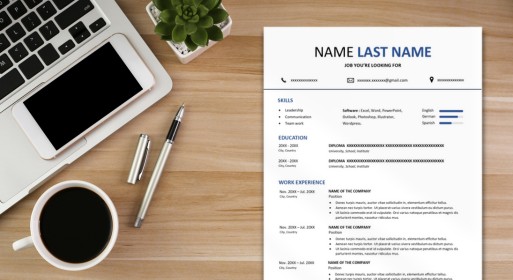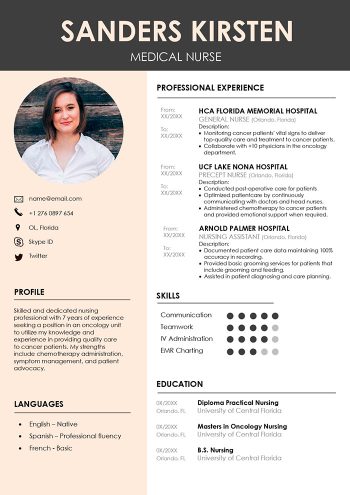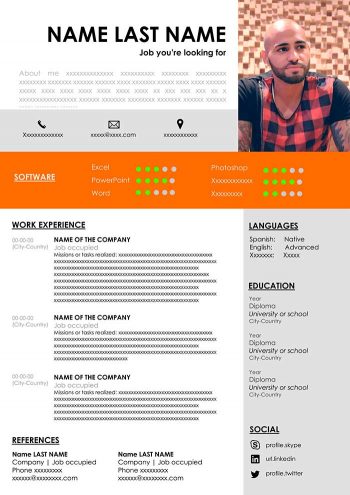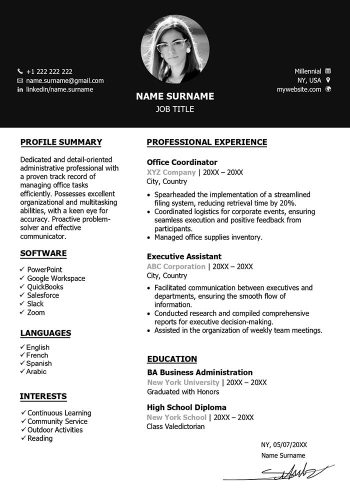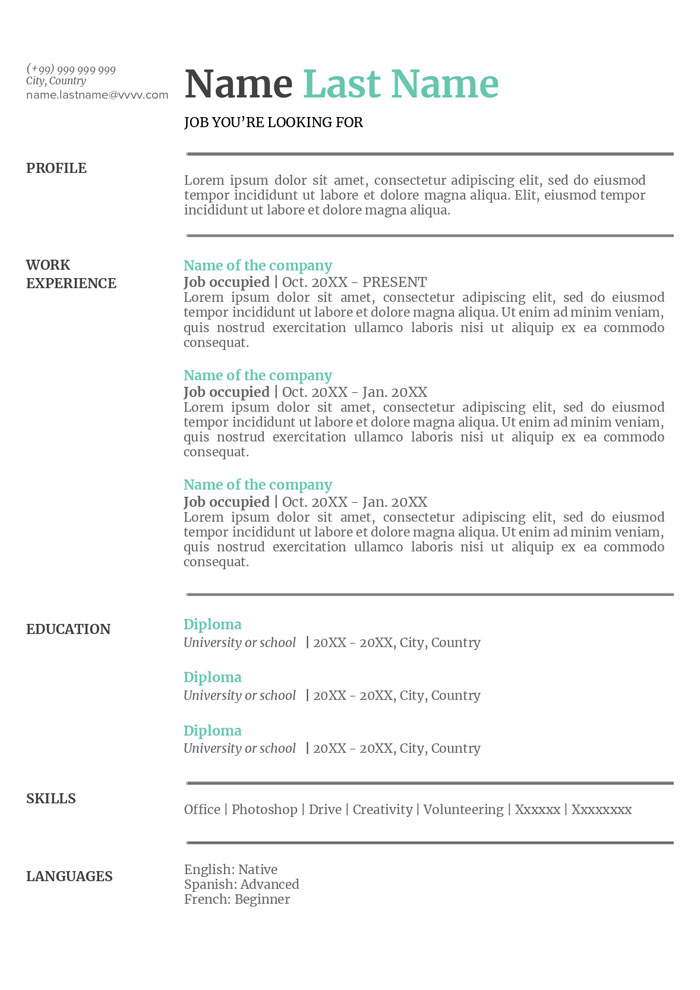

Choose our layout resume Google Docs
Creating a simple resume on Google Docs is a straightforward process that can yield professional results.
- Once you’ve logged into your Google Drive account and opened Google Docs, the first step is to select an appropriate layout for your resume. Alternatively you can also opt for the resume template we provided for you above.
- Consider your industry and the type of job you’re applying for when selecting a layout, as this can help you tailor your resume to better showcase your qualifications.
Change the font size and color
Once the table is in place, you can begin customizing the font size, color, and style to match your personal preferences and the overall aesthetic of your resume. While it’s important to make your resume visually appealing, it’s equally important to keep it simple and minimalist.
- Stick to a clean, easy-to-read font such as Arial or Calibri, and avoid using too many different font styles or colors, as this can make your resume look cluttered and unprofessional.
- Use bold or italic text sparingly to emphasize key points, such as section headings or job titles.
Also read: How Many Bullet Points per Job on a Resume
Create lines to separate your information in your sample resume format Google Doc
To further enhance the readability of your resume, consider adding lines or borders to separate each section of information. This helps create visual distinction between different parts of your resume and makes it easier for employers to navigate.
- You can use the built-in drawing tools in Google Docs to create lines or borders, or simply use the table formatting options to add borders between rows and columns.
- Experiment with different line styles and thicknesses to find a look that suits your resume.
Export to PDF or Docx
Finally, once you’ve finished creating and formatting your sample resume Google Docs, it’s time to export it to a PDF or Docx file. This ensures that your resume will maintain its formatting when viewed on different devices or printed out.
- To export your resume, simply click on the “File” menu in Google Docs, then select “Download” and choose the file format you prefer.
- You can then save the file to your computer or upload it to a job application website.
With your polished resume in hand, you’re ready to start your job search and showcase your skills and experience to potential employers.
Download this sample resume in Google Docs today!